

How to Check a Blox Fruits Trade From a Screenshot
Three ways to turn a screenshot of the Treasure Trade window into two totals and a win, fair or lose answer, and what to look at before you accept.
Editorial review: 10 November 2026
Why check from a picture at all
Most bad trades are not scams. They are trades accepted in a hurry: the offer looked about right, the countdown started, and nobody added up the other side. A screenshot does not run out of time. You can price it calmly, then go back to the table knowing what the offer is worth.
There are three ways to do it. They give the same totals, so pick the one that fits where you are playing.
1. Scan the screenshot with the app
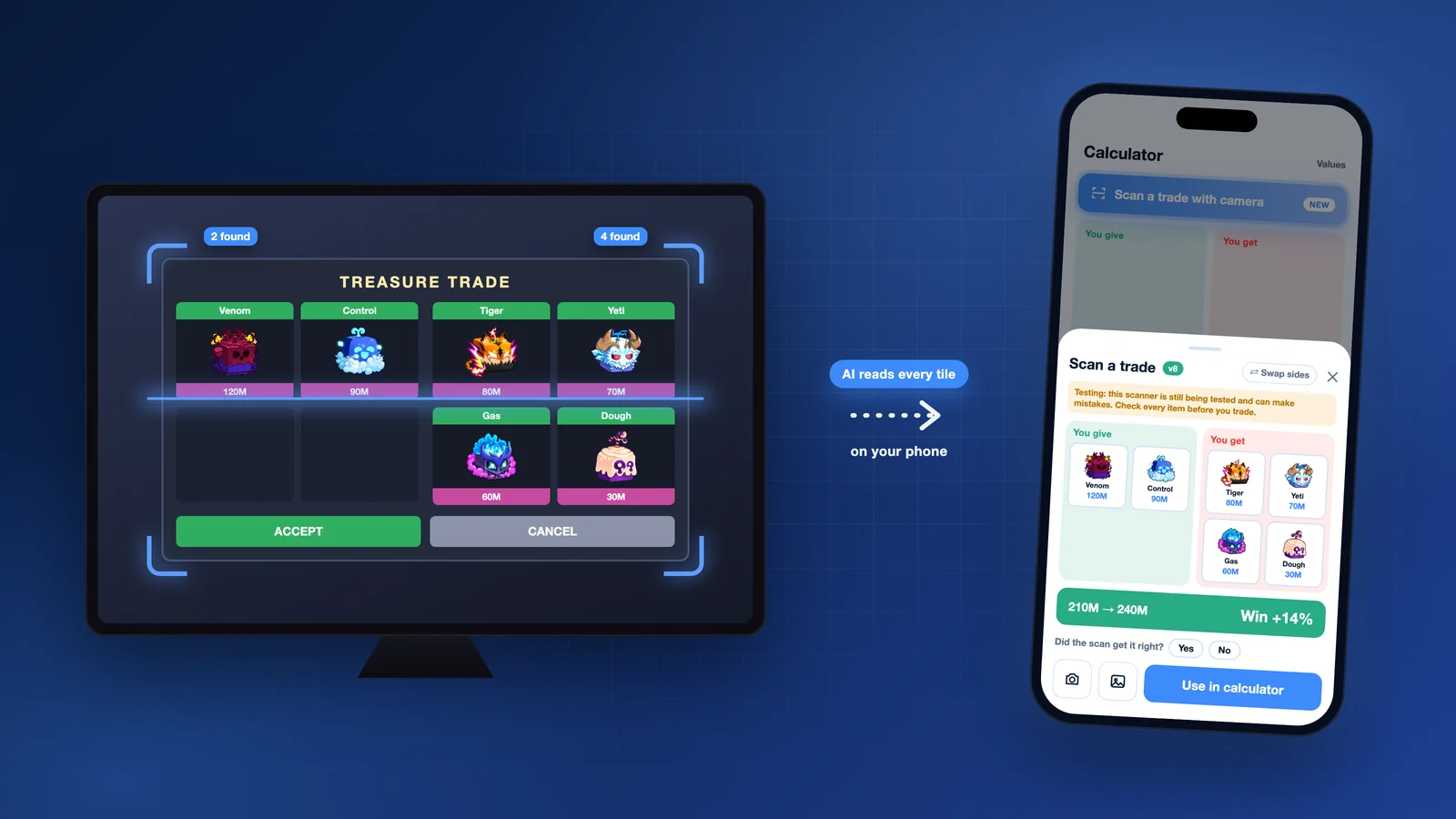
The fastest way is to let your phone read the picture. Our free app has a Trade Scanner on its Calculator tab. Tap Scan a trade with camera, then choose Screenshot and pick the picture, or choose Camera and photograph the screen if you play on a PC or console.
Drag the crop box so it holds both sides of the trade and the TREASURE TRADE title, and tap Scan this area. The app lists your fruits under You give and theirs under You get, each with its value, and shows both totals with win, fair or lose.
If the scanner is unsure about a fruit it marks it with a question mark and waits for you to confirm it before it shows an answer. The picture is read on your phone and is not uploaded. The scanner is new and the app says so on every scan, so look over the fruits it found before you trust the total.
2. Add the fruits in the calculator
On a computer, open the trade calculator on this site and add each fruit from the screenshot to the matching side. Set Permanent on any fruit that is a Permanent version in the picture. The calculator adds both sides and gives its verdict.
The usual mistake here is a missed Permanent. A Permanent fruit is worth many times the normal one, so one wrong toggle changes the whole answer. Read the name on every slot before you compare the totals.
3. Look the fruits up on the value list
For a simple one for one trade, the value list is enough: find both fruits and compare the two numbers. With three or four items on each side it is easy to lose count, which is the reason the first two ways exist.
What to check after you have the answer
A verdict compares estimated totals. It does not tell you whether the game will allow the trade, and it does not measure demand. The trade window has its own rule about the difference in in-game fruit prices, which is separate from community values.
Ask whether you want what you are getting. Four small fruits that add up to one big one are harder to trade onward than the big one was. A fruit many players ask for is worth a little more to you than its number says.
Look at the trade window again before you accept. A screenshot shows one moment, and items can be changed after it was taken. Read every slot one more time during the countdown.
Treat a screenshot someone sends you in a chat as a description, not as proof. Pictures get reused and edited. Only the Treasure Trade window on your own screen counts.
Getting a picture that scans well
A real screenshot beats a photo of a screen. Use one whenever the game is on the same device as the app.
When you photograph a monitor, hold the phone straight and the same way up as the screen, get close enough that the trade window fills most of the picture, and keep lamps and windows from reflecting on the screen.
Take the picture before the countdown darkens the window if you can, and crop out your hotbar so its items are not counted as part of the trade.
Related
References
Community-maintained references checked for this review. Game updates can change mechanics; recommendations are editorial judgments.
Plan your next trade
Check item values, compare an offer, or view dealer stock. Community trading estimates are separate from in-game Beli and Robux prices.