The trade table is open, the other player has put four fruits in, and the countdown is about to start. There is no time to look up each one. The scanner in our app does it from one picture: take a screenshot of the Treasure Trade window, or point your phone at the screen, and it finds every fruit, adds up both sides and tells you if it is a win, fair or a loss.
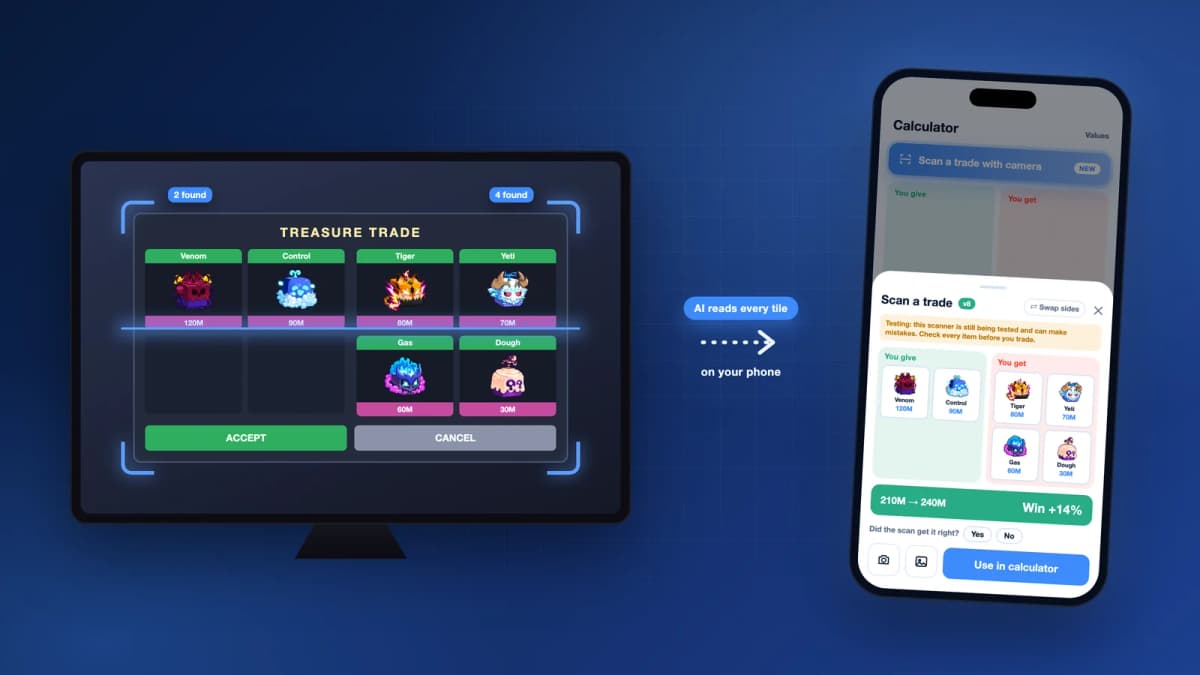
Every fruit you give and every fruit you get, Permanent fruits included.
The picture is read on your device. It is not uploaded unless you choose to send it.
No limit on scans. It is part of the free app.
Four taps, once the scanner is downloaded.
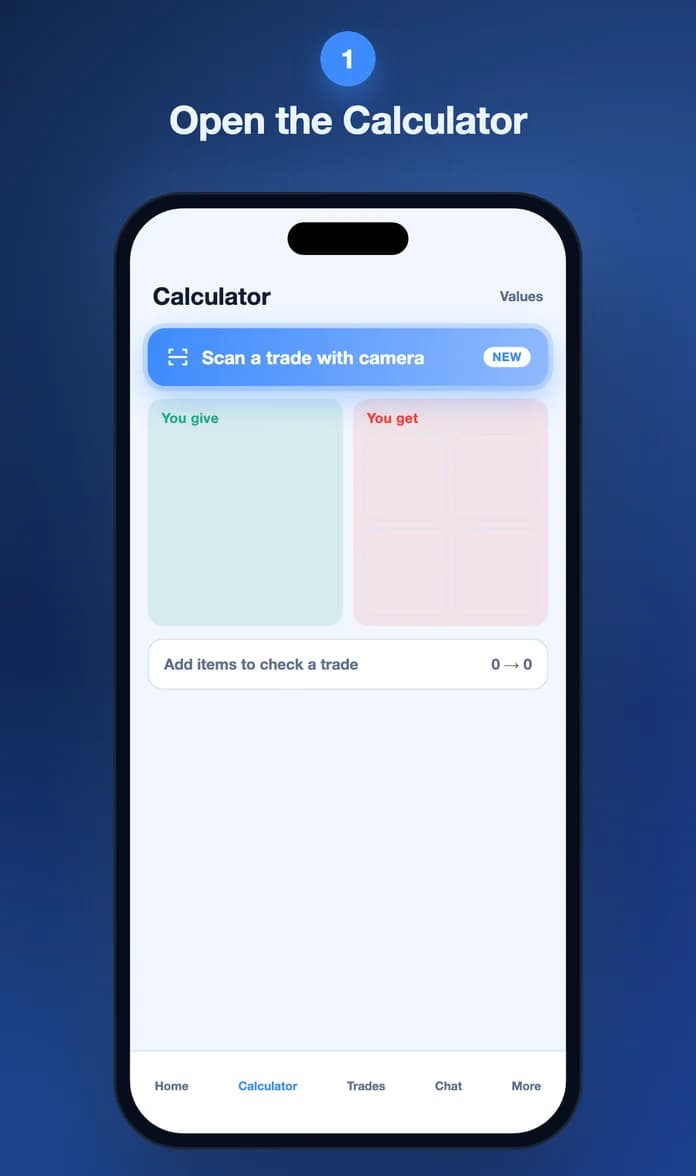
In the app, open the Calculator tab and tap Scan a trade with camera. The first time, the app downloads the scanner once, about 5 MB.
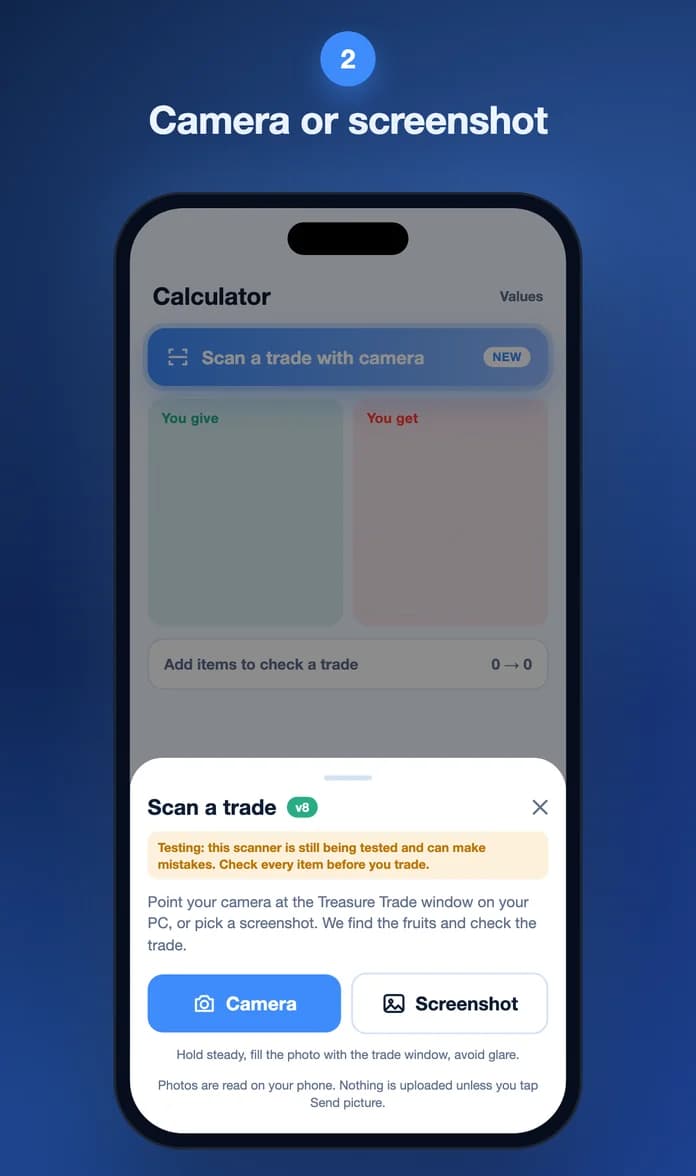
Playing on this phone? Take a screenshot in the game and tap Screenshot. Playing on a PC or console? Tap Camera and photograph the screen.
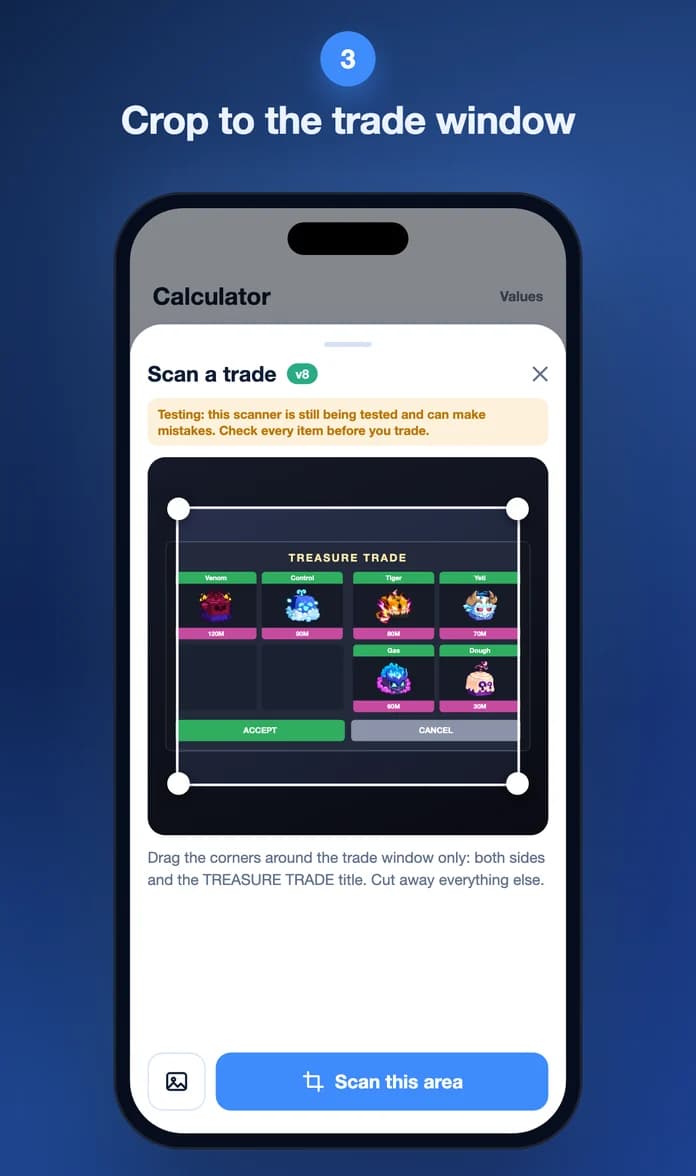
Drag the corners so the box holds both sides and the TREASURE TRADE title, and nothing else. Then tap Scan this area.
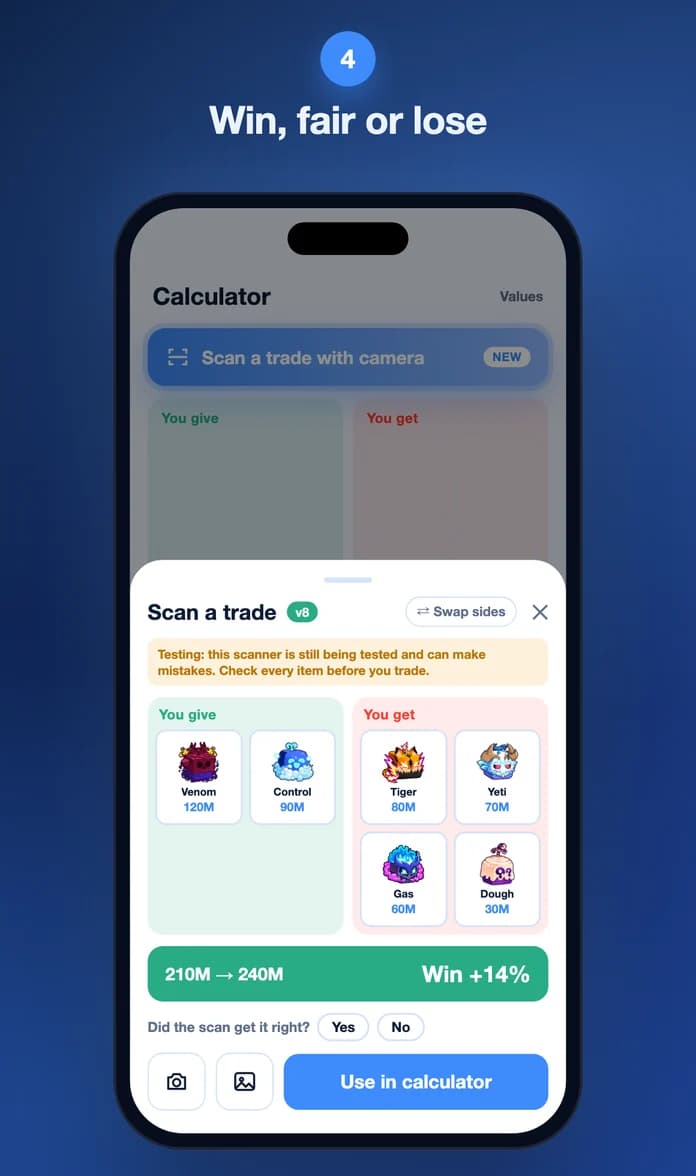
Your fruits show under You give, theirs under You get, each with its value. Below them: both totals and win, fair or lose.
Someone offers Tiger, Yeti, Gas and Dough for your Venom and Control. You take a screenshot, crop it and tap Scan this area. With the values on the list right now, the app shows this:
The scanner calls a trade fair when what you get is within 10% of what you give. Past that it is a win or a loss for you. The calculator on this site uses its own fair band, which changes with the size of the trade, so the two can differ on a close call. A number is only the start: two fruits for four is a different trade from four for four, and demand matters as much as value. The trading guide covers what to weigh before you accept.
When the scanner is not sure about a fruit, it puts a small question mark on it and holds back the answer until you have checked it. Tap the fruit to pick the right one.
A screenshot is the best picture you can give it. If you have to photograph a screen, these three habits fix most bad scans.
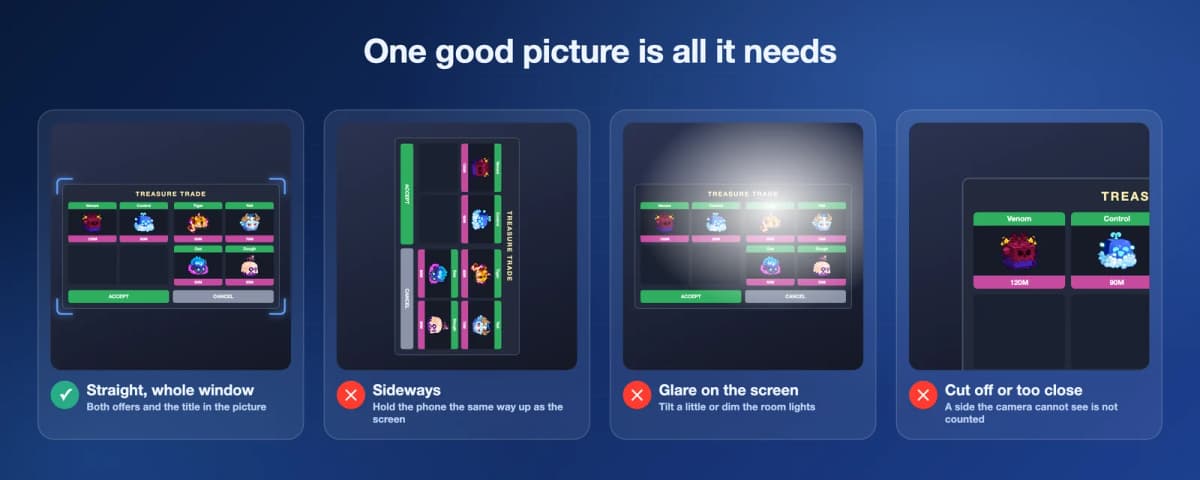
Move closer until the trade window takes up most of the photo. Both sides and the title must be inside it.
Hold the phone the same way up as the screen. A sideways photo cannot be read.
A lamp or window shining on the screen hides fruits. Tilt the phone a little until the bright spot is gone.
Every scan in the app carries a yellow note that says the scanner is still being tested and can make mistakes. These are the cases we know about.
If a scan is wrong, the result screen has a Send picture button. We look at those pictures, fix what the scanner missed, and the fix reaches your phone as a small scanner update. You do not have to wait for a new version of the app.
First it looks for the Treasure Trade window and draws a box around every slot that has something in it.
The name on the slot is read on the phone. A small AI model also looks at the picture of the fruit, for the times the text is too blurred to read.
The fruits go into the calculator, which adds up both sides and gives the answer: win, fair or lose.
All of this happens on your phone. We tested the naming step on 260 trade slots the model had never seen, cut from real trade pictures, and on a phone it named 247 of them correctly. A whole scan also depends on the picture, which is why the tips above matter. What we keep when you do send a picture is written in the privacy policy.
Yes. It is part of the free app on iPhone and Android. You can scan as many trades as you like.
On the Calculator tab, at the top. The button says Scan a trade with camera. If you cannot see it, update the app from the App Store or Google Play and open the Calculator again.
No. The picture is read on your phone. Nothing leaves the phone unless you tap Send picture after a scan, which sends that one picture to us so we can fix a wrong read. You never have to send one.
Yes. It reads the name on the slot, so Permanent Kitsune is priced as a Permanent fruit. Check the result anyway: the gap between a normal and a Permanent fruit is large, and one wrong read changes the whole answer.
Tap the fruit. The app shows the next closest matches to choose from, and you can also remove it. The totals change as soon as you fix it.
The scanner was not sure about that one. The app will not show win, fair or lose until you have checked every fruit with a question mark, so a wrong guess cannot give you a wrong answer.
Not yet. The scanner needs a phone, so it lives in the app. On the website you can add the fruits yourself in the trade calculator.
Get the app, open the Calculator and tap Scan a trade with camera. On a computer right now? The trade calculator on this site works when you add the fruits yourself.
More to read: how to check a Blox Fruits trade from a screenshot